 Mare
MareManual / Mare 0.21
Tables
A table is rows of cells. In Mare, each column can have a type: choice, checkbox, date or number. The note itself stays plain text.
Making one and finding your way
Type a row with bars between the cells, like | Name | Age |, and press Enter. Or click the table button in the formatting bar. Then:
- Tab → next cell. Enter → the cell below
- Home and End → the start or end of the cell. Press again for the start or end of the row
- Shift+Enter → a new line inside the cell
- The bar under the table → adds a row. The bar beside it adds a column. When there's no room beside the table, as on a phone, both bars are under it and are labelled
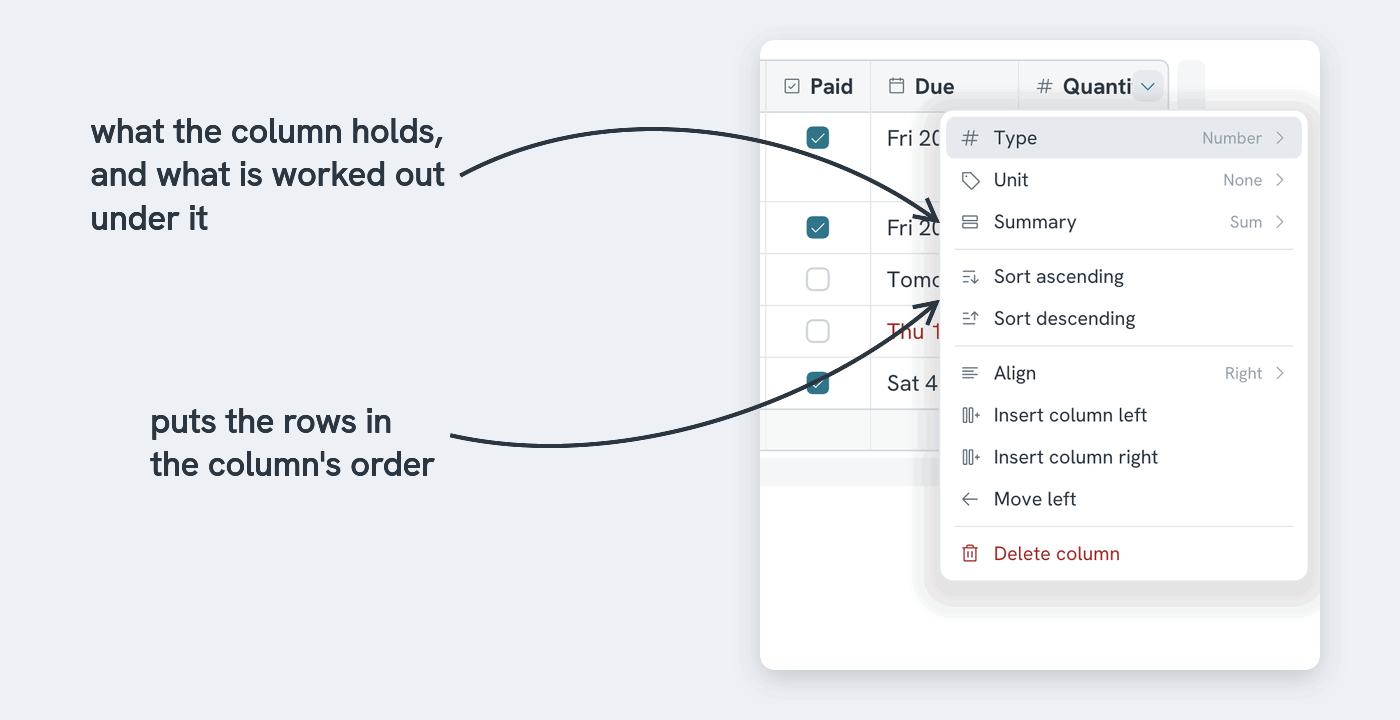
- Hover a column → an arrow appears in its header. Click it for the column menu: type, sort, align, insert, move, delete
- Hover a row → dots appear beside it. Click them to insert a row above or below, move the row or delete it
- On a tablet or a phone → tap a cell to show the buttons for its column and its row
- Drag the line between two columns → resizes the column. On a tablet or a phone, drag the line in the header. In any other row, long-press the line first and then drag. Double-click or double-tap the line to reset the column to its automatic width. Reset width in the column menu does the same. Reset table size in the right-click menu resets every column. A column keeps its width when you move it. Widths sync with your notes
- Long text wraps inside its cell. A table that's too wide for the page scrolls sideways → drag the scrollbar under it, or hold Shift and scroll
- Pictures fit in cells too → paste or drop one while the caret is in a cell
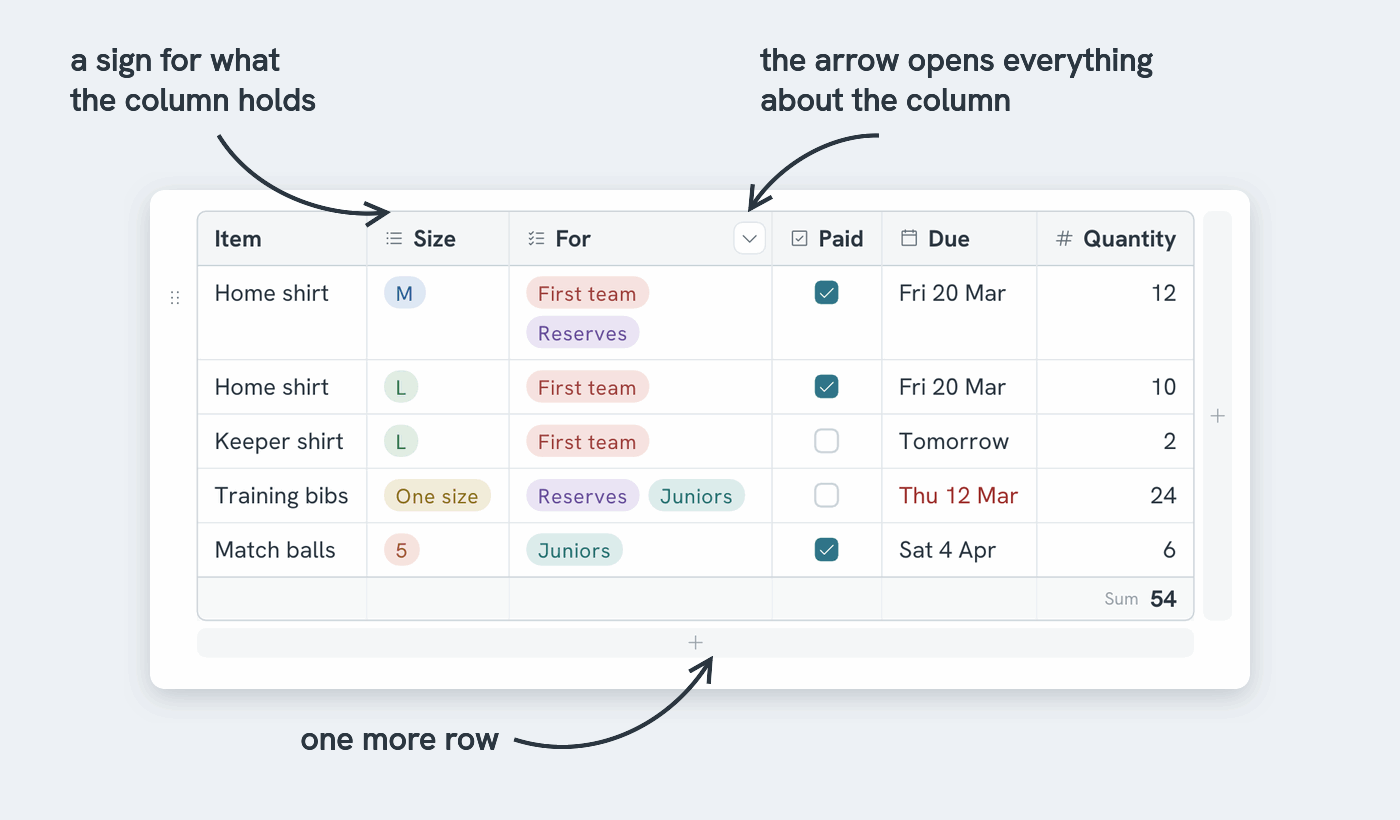
Columns that hold more than text
Give a column a type and its cells show that kind of value. Click the arrow in the column's header and pick a Type. The header then shows an icon for the type.
| Type | A cell shows | You change it by |
|---|---|---|
| Text | what you typed | typing |
| Choice | one or more options from a dropdown, each as a coloured pill | clicking the cell and picking from the dropdown |
| Checkbox | a checkbox, ticked or not | clicking it, or pressing Space |
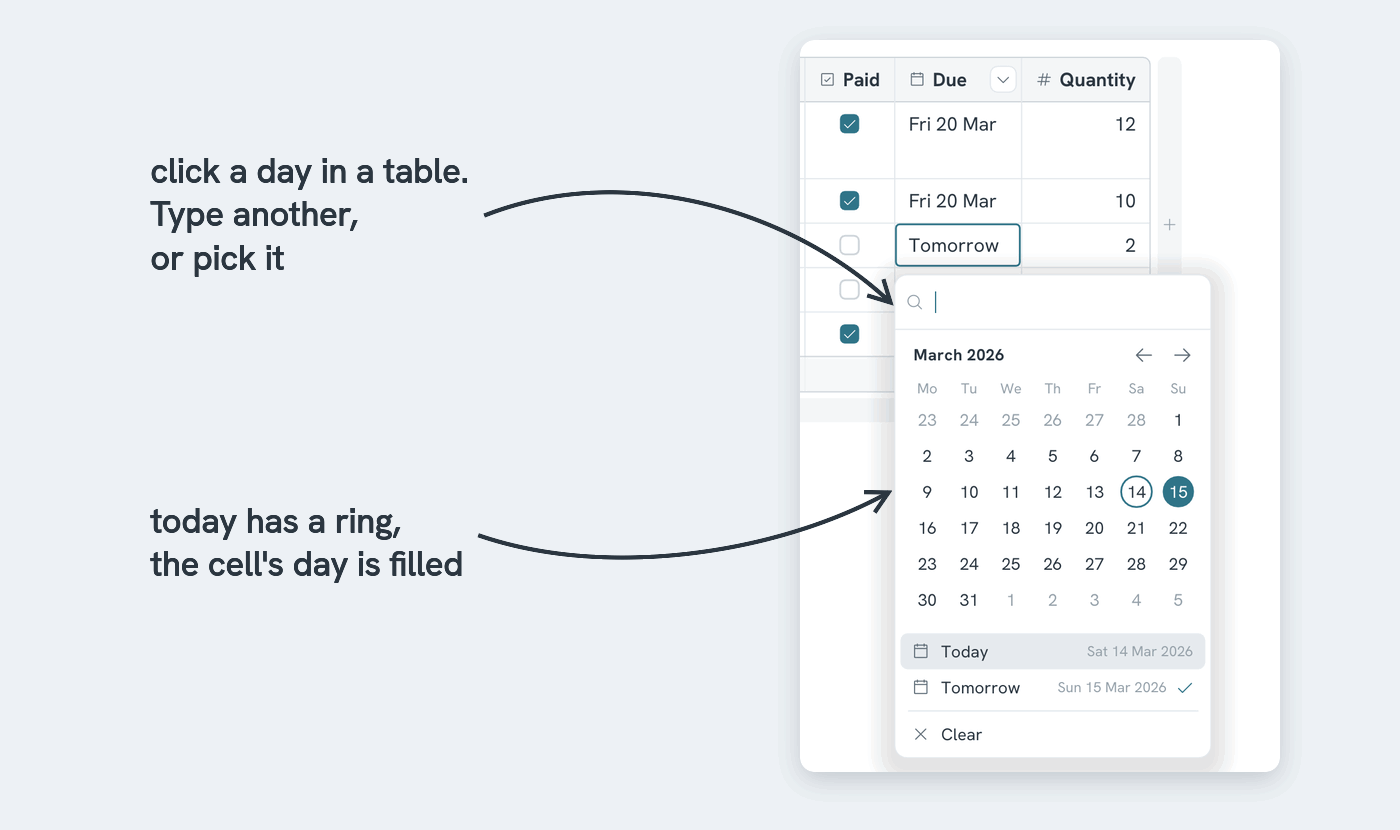
| Date | a date in everyday words: Tomorrow, Fri 20 Mar | clicking the cell and picking a day in the date picker |
| Number | a number, right-aligned | typing |
Choices
- Change an existing column to Choice → its values become the options, each with a colour
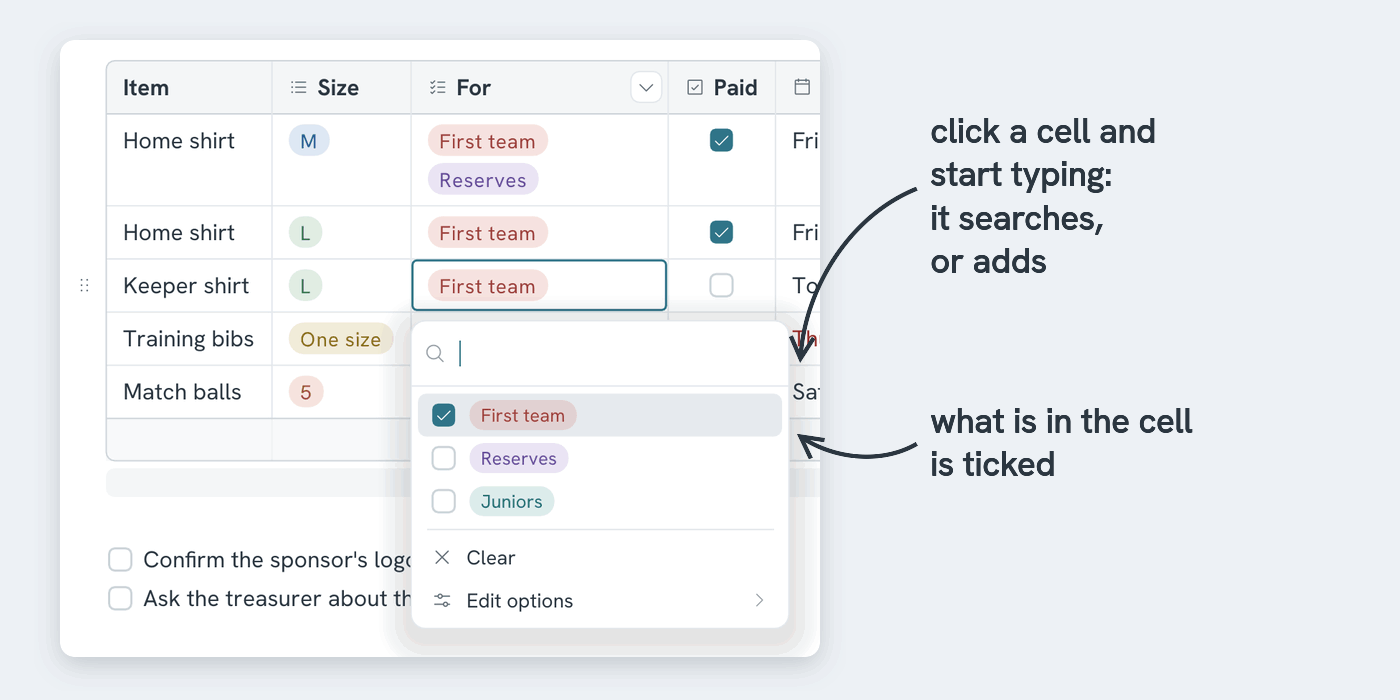
- Click a cell, or start typing in it → the dropdown opens and filters as you type. Enter picks an option. You can add a name that isn't in the dropdown yet from there
- Allow multiple options, in the column menu → a cell can hold several options. The dropdown stays open while you tick them
- Options, in the column menu, or Edit options under the dropdown → add an option, rename it, change its colour, move it up or down, or delete it
- Rename an option → every cell with that option updates. One undo reverses it. Delete an option → the cells keep their text, shown without a colour
- Backspace or Delete → empties the cell
Dates
- Click a cell → the date picker opens. Today is circled and the cell's date is filled in. The arrows go to the previous and the next month
- Or type the date:
14 oct,oct 14 2027,14/10,tomorrow,2026-10-14. Mare rejects a date that doesn't exist, such as 31 April - Mark past dates, in the column menu → past dates turn red
Numbers, with a sum under the column
- Type them. You can use a comma or a point for the decimals
- Unit, in the column menu → shown after every number. It isn't written into the note
- Summary, in the column menu → picks the summary shown at the bottom of the table:
| Pick | The summary shows |
|---|---|
| Sum | all the numbers added up |
| Average | the sum divided by the number of cells with a number |
| Lowest | the smallest number |
| Highest | the largest number |
| Count | the number of cells with a number |
- Empty cells and cells without a number are skipped
- The summary is shown, not written into the note. It updates as you type
Sorting
Sort ascending and Sort descending in the column menu reorder the rows in the note by that column. Numbers sort by value, dates by day and choices by the order of their options. Unticked checkboxes come before ticked ones. Empty cells always come last. One undo reverses the sort.
What is in the note
A table stays a plain markdown table. A cell says Done, or Bug, Urgent, or [x], or 2026-10-14, or 12.5, and every other markdown app can read it.
- A column's type, options and colours are stored beside the note, under the name in the column's header. They sync with your notes
- Rename a column by typing in its header → it keeps its type
- Two tables in one note share their options for columns with the same name
- A column needs a name before you can give it a type other than text
- A value that isn't one of the options still shows, as a pill without a colour. This happens when you type it by hand or another app writes it