Mare
MareManual / Mare 0.21
Shortcuts
On a Mac, use Cmd instead of Ctrl. These are the shortcuts Mare starts with. You can change them on a computer.
| To | Press |
|---|---|
| Make a new note | Ctrl+N |
| Search notes, tags and commands | Ctrl+K |
| Find in this note | Ctrl+F |
| Find and replace | Ctrl+H |
| Go to the next or previous note | Ctrl+Tab, Ctrl+Shift+Tab |
| Switch layout | Ctrl+1, 2, 3 |
| Make text larger, smaller, or reset it | Ctrl+plus, Ctrl+minus, Ctrl+0 |
| Open settings | Ctrl+comma |
| Open note details | Ctrl+Shift+I |
| Pin note | Ctrl+Shift+P |
| Move note to trash | Ctrl+Shift+Backspace |
| Lock notes again | Ctrl+Shift+K |
| Bold, italic, underline | Ctrl+B, I, U |
| Highlight | Ctrl+Shift+M |
| Inline code | Ctrl+E |
| Heading, next level | Ctrl+Shift+H |
| Todo, and tick it | Ctrl+T, Ctrl+Enter |
| New line in the same paragraph or cell | Shift+Enter |
| Bullet list, numbered list | Ctrl+L, Ctrl+Shift+L |
| Quote | Ctrl+Shift+T |
| Fold heading | Ctrl+' |
| Undo, redo | Ctrl+Z, Ctrl+Shift+Z or Ctrl+Y |
Change a shortcut
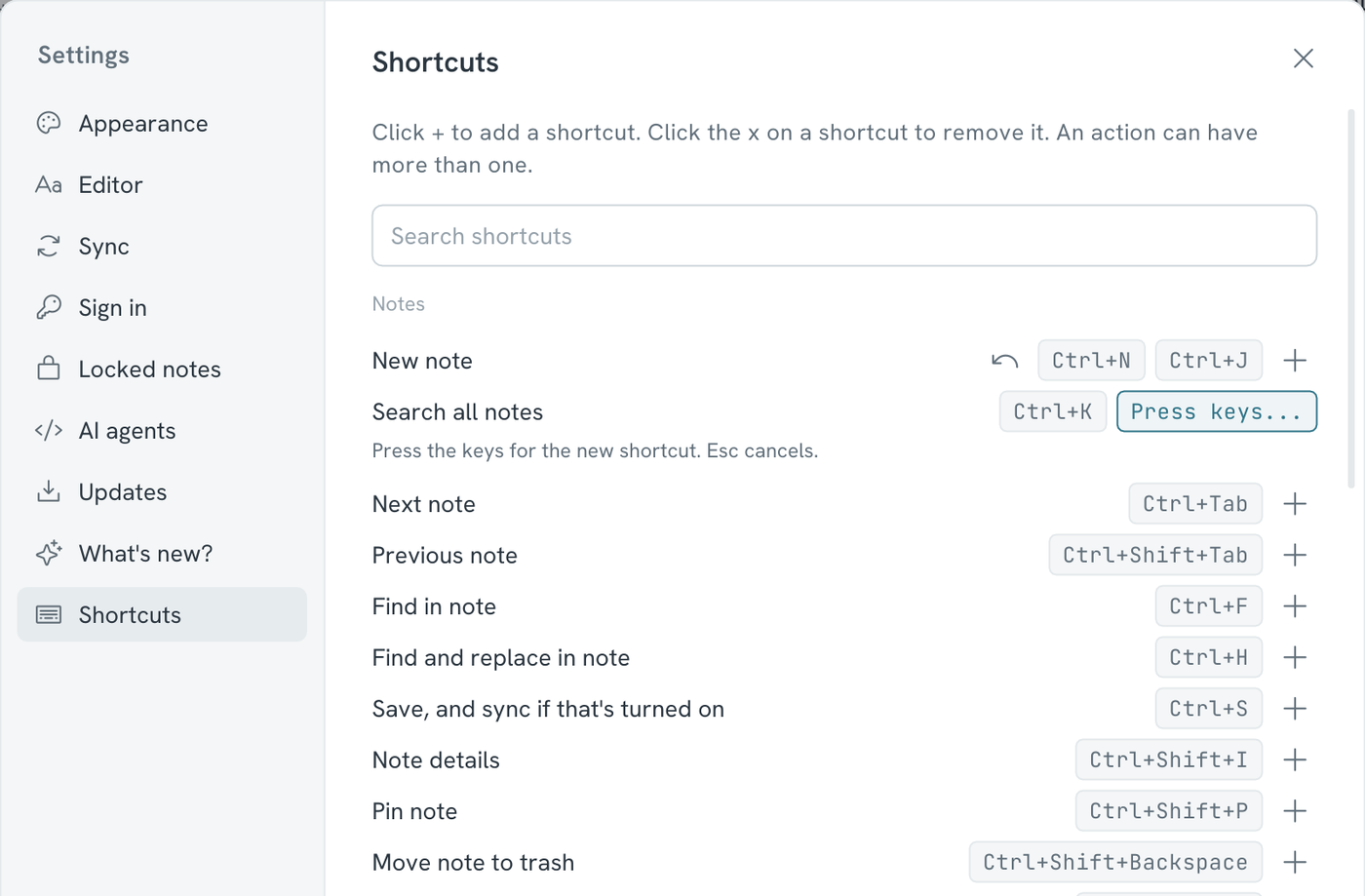
Settings → Shortcuts lists every action with its keys. Type in the search field to find an action, or the keys you have in mind.
- Add a shortcut → click + next to the action, then press the keys. An action can have more than one shortcut
- Remove a shortcut → hover over it and click its x
- Keys already taken? → Mare says which action has them. Use it here instead moves them over
- Changed your mind? → the round arrow puts one action back the way it was. Reset all shortcuts puts them all back
- Pressed the wrong keys? → press Esc to stop
A shortcut needs Ctrl, or is one of F1 to F12. Copy, cut, paste, select all, undo and redo work the same in every app, so they're fixed. The keys that move the caret can't be shortcuts. Backspace and Delete can, with Ctrl and Shift held.
Shortcuts are stored on each device. A phone or tablet with a keyboard uses the ones Mare starts with.