 Mare
MareManual / Mare 0.21
Sync
A workspace is a folder on your device. Sync copies it to a location you choose, and from there to your other devices:
this device → your location → your other devices
Mare has no server and you don't need an account. You provide the location. There are five kinds:
| Kind | What it is | You need |
|---|---|---|
| Google Drive | A folder in your own Drive | To sign in to Google |
| Git | A repository at a git host | Its address |
| Folder | A USB stick or a shared folder | Its path |
| SFTP | A folder on a server, over SSH | Server, user, folder |
| S3 | A bucket (Amazon, R2, Backblaze) | Bucket, two keys |
Not sure? Pick Google Drive if you have a Google account and don't want to learn what the others are. Pick Git if you already have a git host.
Git
Mare has git built in. There's nothing to install, on any system. A workspace is still an ordinary git repository. If you have the git program, it works in the folder as it does in any other.
- An address that starts with
https://→ Settings → Sign in → enter the host, your name, and a password or token. Mare stores them in your system's keychain - An address like
git@host:you/notes.git→ Settings → Sign in → Create a key, then add the key to your host. Mare also tries the keys you already have in.sshin your home folder, and the keys in an SSH agent - A key with a passphrase → works only when an SSH agent holds it. Mare never asks for a passphrase
.ssh/configin your home folder → Mare follows its settings for a host: the real name, the port, the name to sign in with and the key files. A host reached through another one (a jump host) isn't supported- No keychain? Some systems don't have one. Settings → Sign in then offers Keep passwords in a plain file, which does what it says
- Signed in with an earlier version? Mare finds the password git stored for you and moves it to the keychain the first time it's needed
Google Drive
Pick Google Drive → Sign in with Google → your browser opens → say yes → back to Mare. That's the whole setup.
- Mare can only see the files it puts in your Drive. It can't see the rest of your Drive
- Your workspaces are in a folder called Mare in your Drive, one folder each. Have a look, but don't change what's inside
- One sign-in covers all your workspaces. It's stored in your device's keychain and nowhere else
- Changed your mind? Remove Mare's access at myaccount.google.com → Security → third-party access. Delete the Mare folder to remove the copies in your Drive too
Setting it up, once:
- Click the line at the bottom of the sidebar → pick the kind → fill it in
- Test connection → wait for "Configuration is correct." → Connect (Google Drive skips the test: signing in was the test)
- Mare asks for a name and an email. They sign your changes, so you can see later who made them
Refused at step 2? For Git and SFTP → Settings → Sign in → Create a key → copy it → paste it where your host or server keeps its SSH keys. For S3 → check the two keys.
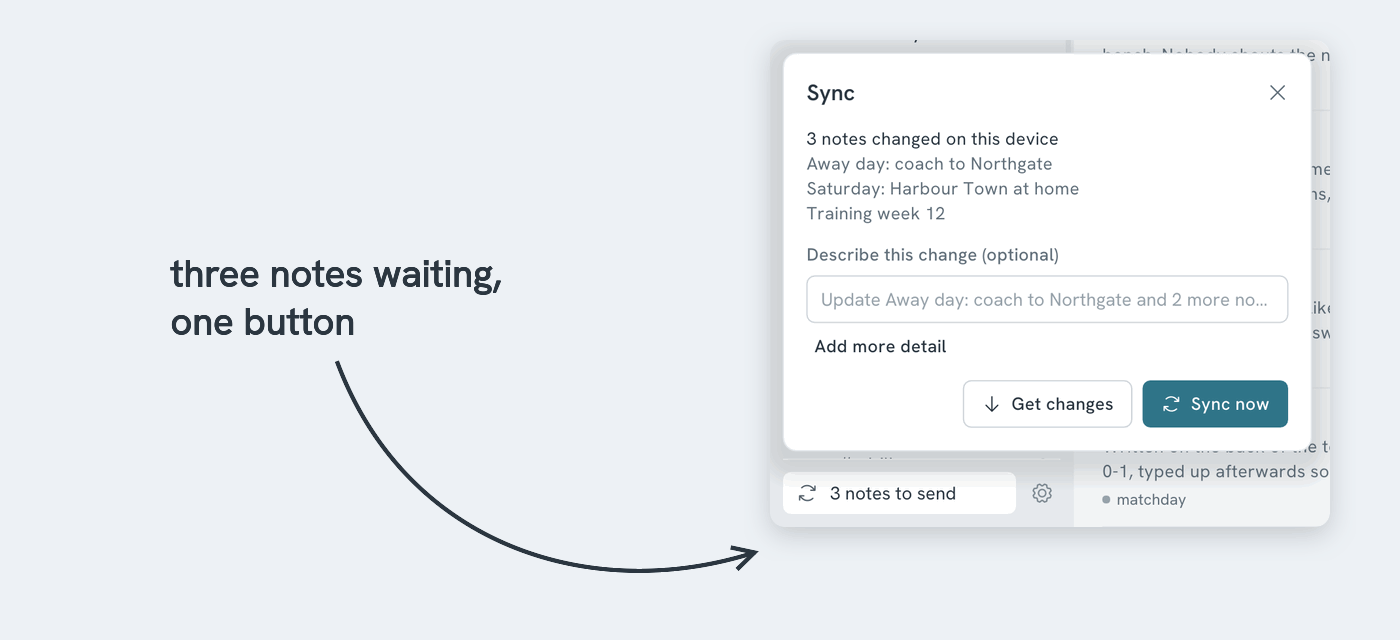
After that: the line at the bottom of the sidebar shows the sync status. Click it → Sync now. You can add a few words about what changed, or not. Nobody is grading it. The panel shows progress while it syncs and closes when it's done. Click the cross in its corner to close it sooner.
On a second device: open Mare → Open or create workspace → pick the same kind of location → fill it in → Add workspace. Mare finds the workspace there and downloads it. With Google Drive → sign in, and every workspace in your Drive shows as a card → pick one → Open workspace.
When two devices changed the same note
Different notes, or different parts of one note → Mare merges them without asking.
The same lines of the same note → Mare shows both versions side by side. You pick one for each conflict. Nothing is discarded until you choose.