Mare
Logbook / Guide /
Mare for a small business: a flower shop in one workspace
A note for every order, a board that groups them by where they are, and a logbook with a note for every day the shop is open. One way to run a small shop in Mare, from Flo's flowers.
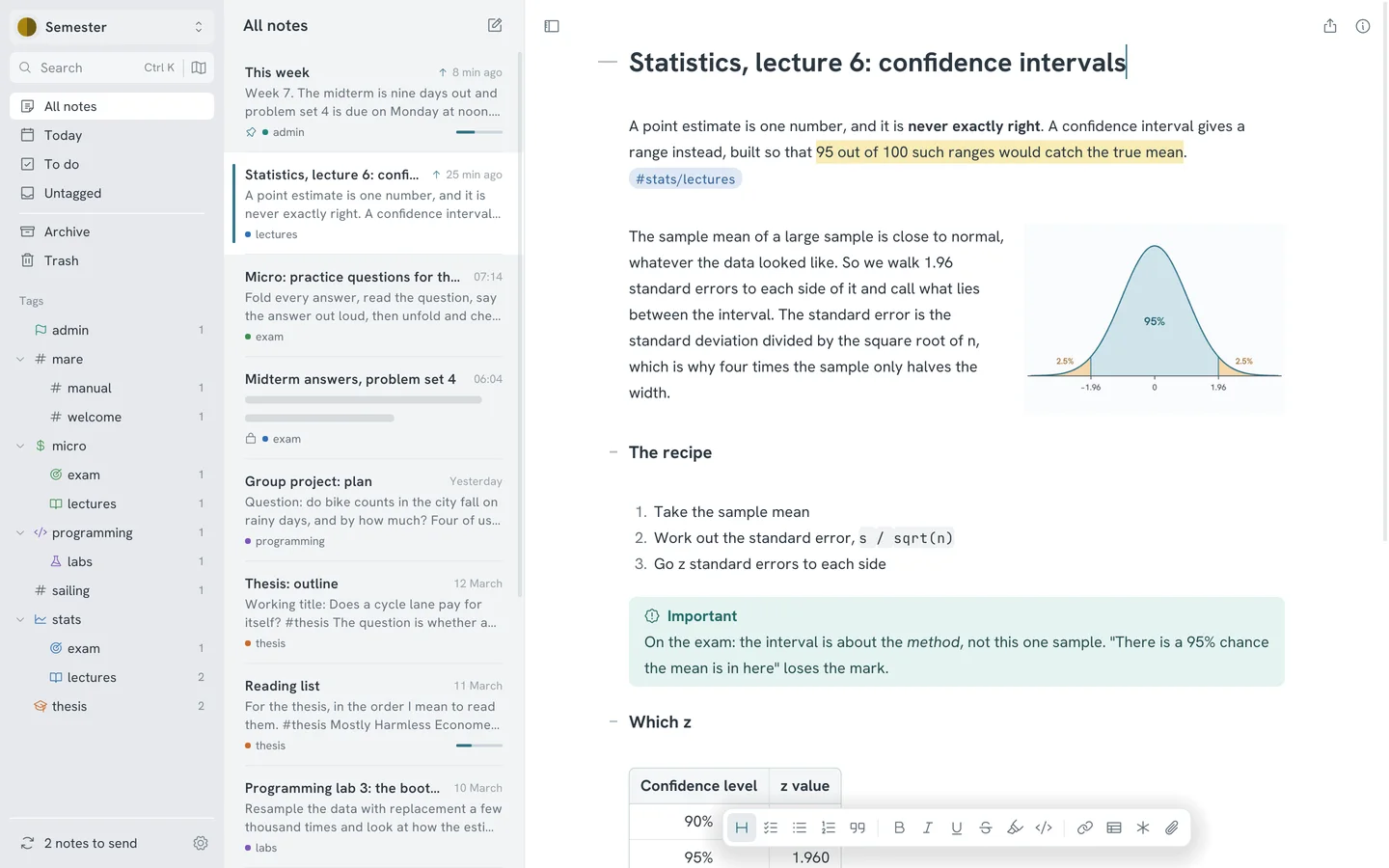
A small shop runs on little notes. Order slips by the till, a notebook for the day, photos in a chat with a customer. They work until one goes missing on the day of a wedding. Here's one way to keep all of it in one Mare workspace, without turning the shop into a database project.
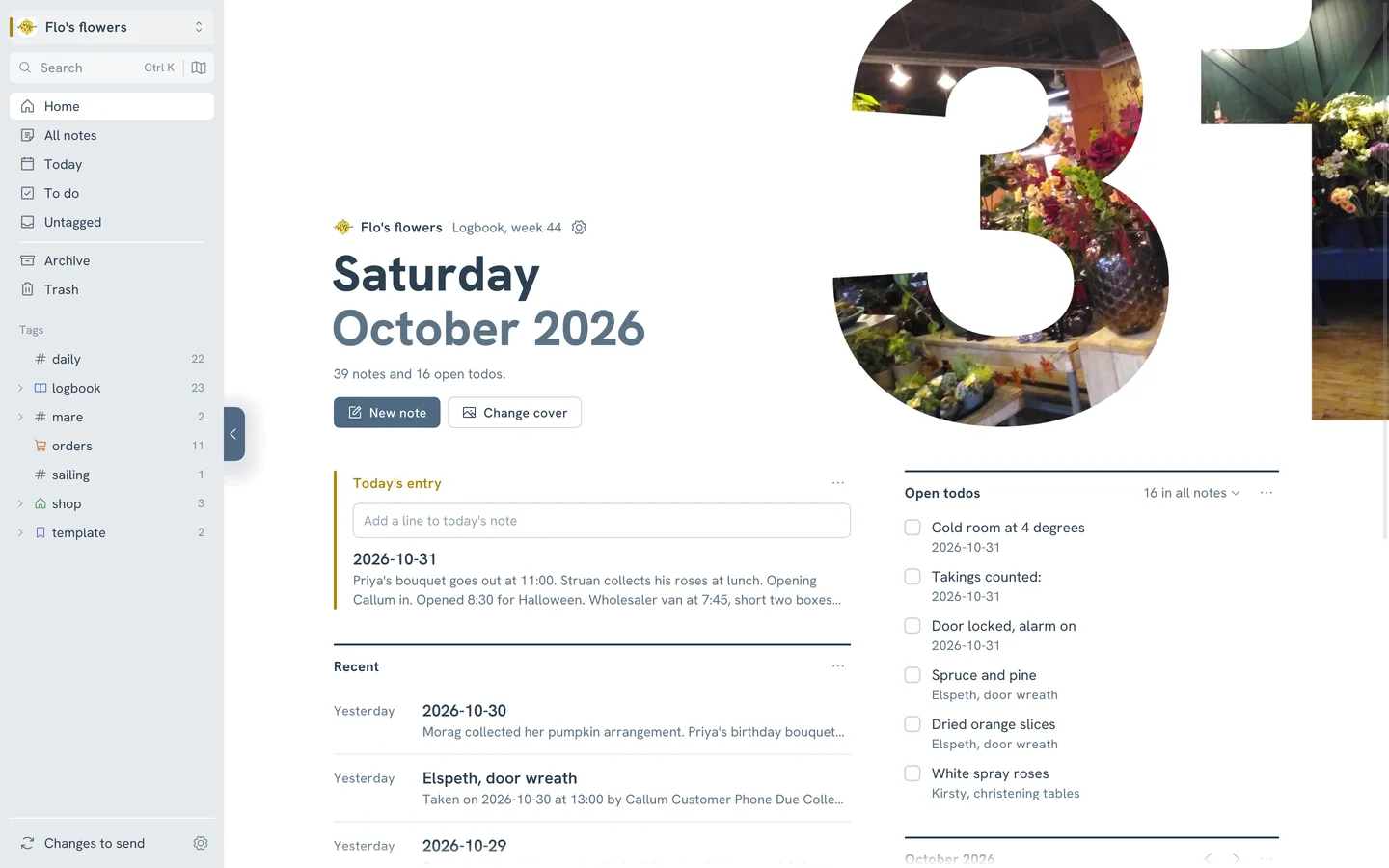
The pictures on this page come from Flo's flowers, a flower shop in Scotland. Flo takes the orders, Callum helps on Saturdays, and it's the last Saturday of October. The orders and the days are made up.
One workspace for the shop
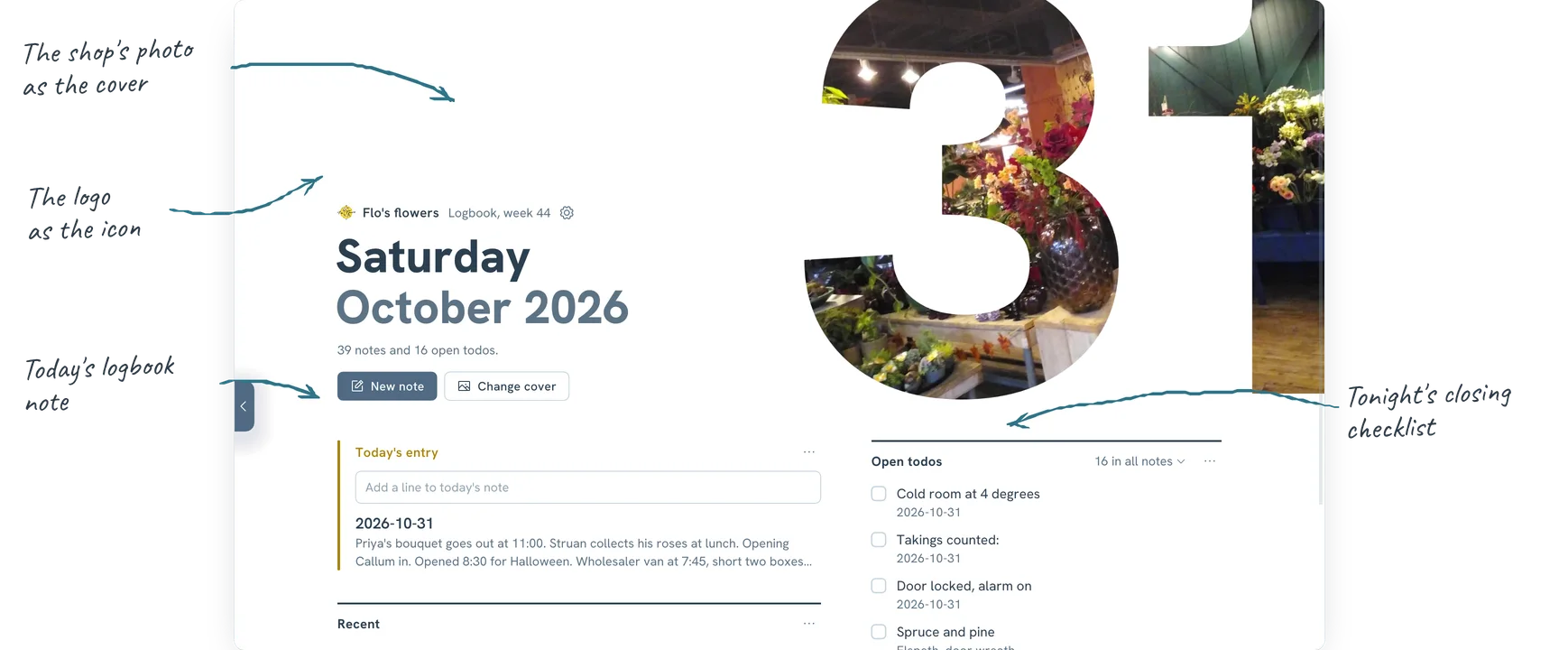
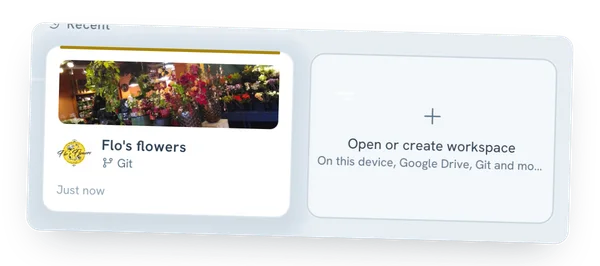
Make a workspace just for the shop, apart from your own notes. On its home, click the gear beside its name and open Appearance. Pick a photo of the shop as the cover and your logo as the icon. Mare suggests a colour from the photo. Flo's is the yellow of her logo.
The home shows today's note, your open todos and the notes you pinned. In a shop, that's the morning and the evening in one glance.
Keep the order of the workspace simple. Flo's has four tags and three pinned notes:
#ordersfor every order, and the board that lists them.#logbookfor a note for every day the shop is open.#shopfor the things that rarely change: suppliers, prices and opening hours.#templatefor the order form and the daily page.
Pin Orders, Logbook and a Start here note that links to the rest. A new helper reads Start here and knows where everything is.
A note for every order
Every order gets its own note. That's where the details live: who it's for, when it's due, what they asked for and the photo they sent you. A template makes sure you ask the same questions every time.
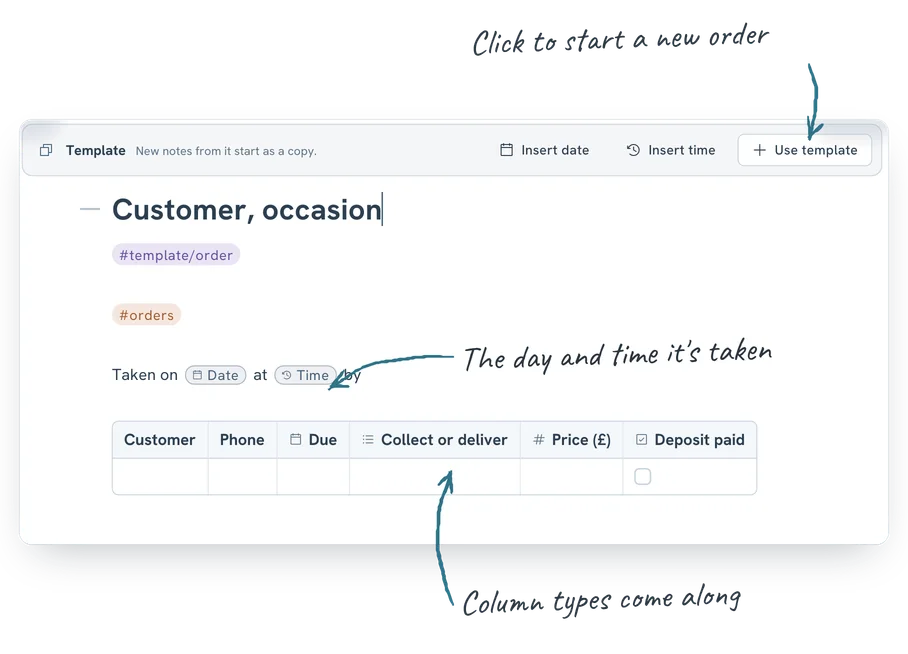
Press Ctrl K, choose New template and write the order form once. Flo's has a line for when the order was taken, a table for the customer, and headings for what they want, the flowers to order, pictures and delivery. Tag it #orders too, so every copy is filed under orders.
Click Insert date and Insert time in the template's bar. In a new order they become the moment you took it, such as 2026-10-13 at 14:20.
The table in the template has typed columns. Due is a date, Collect or deliver is a choice, Price is a number and Deposit paid is a checkbox. Every copy gets the same columns, with the same dropdown and date picker.
When the phone rings, click Use template, or press Ctrl K and choose New from template. Give the note the customer's name and the occasion, such as "Aileen and Ross, wedding", and fill it in while you talk.
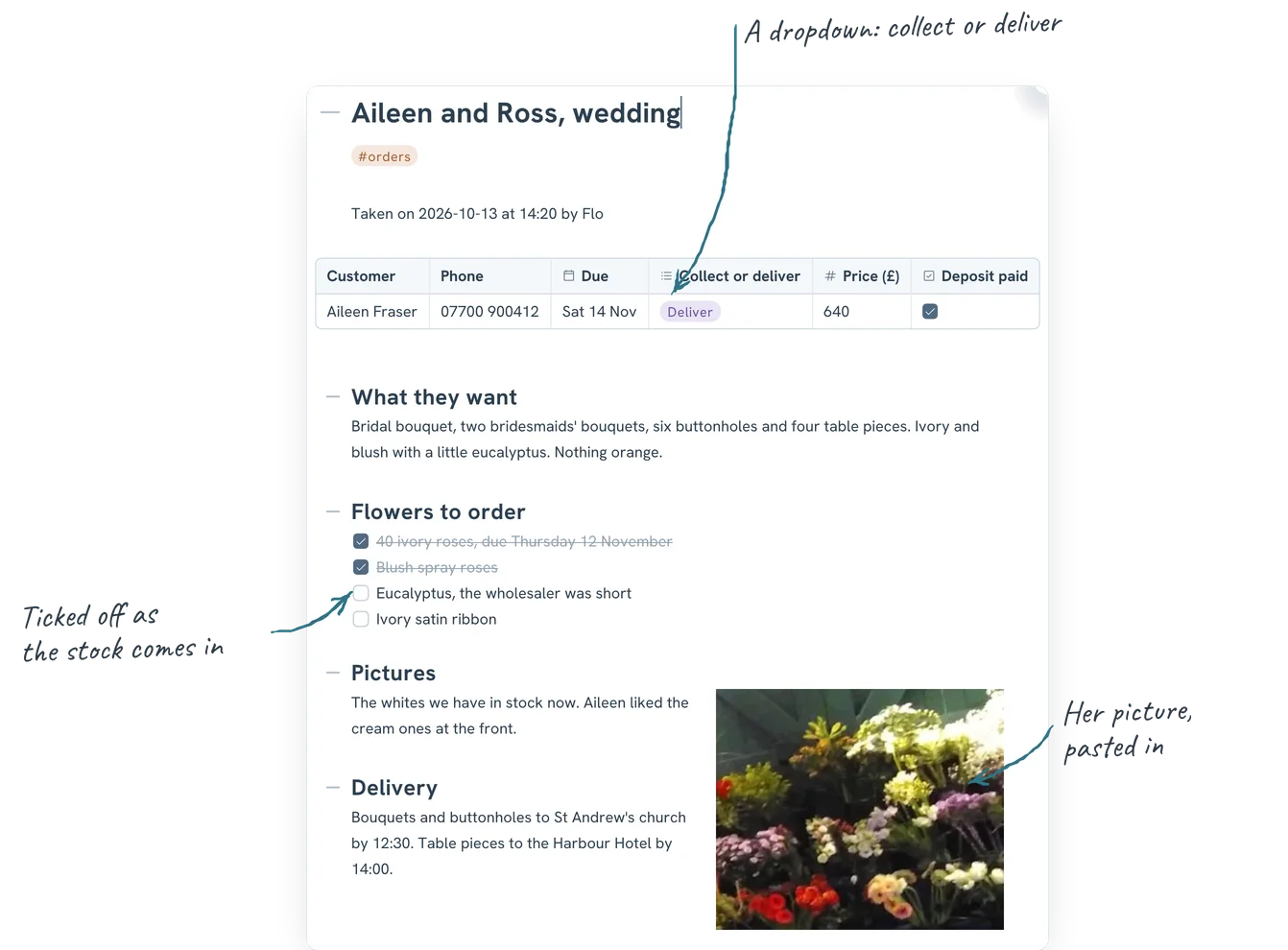
- Write the flowers to order as todos. Tick them off when the wholesaler's van brings them. The To do view in the sidebar collects what's still missing across every order.
- Paste or drop the customer's photos under Pictures. Add one of the finished piece too. Next year, when they ask for "the same as last time", you can show them.
- The card message and the delivery address go under Delivery. That's where the driver looks.
The board: every order at a glance
Single orders are easy. The hard question in a shop is "what's on this week?" Flo answers it with one table, in a pinned note called Orders.
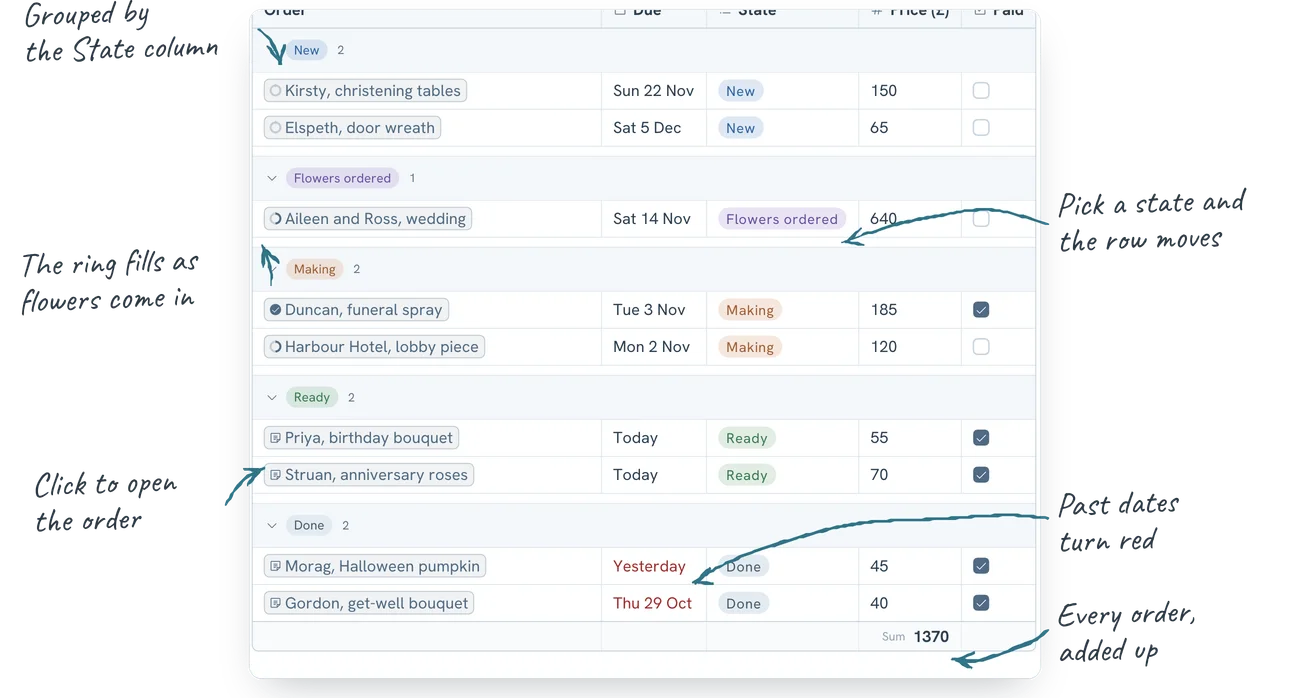
Each row is one order. The columns do the work:
- Order links to the order's note. Type
[[and pick it. The link shows a ring that fills as you tick off its flowers, so you can see from the board which orders still wait for stock. - Due is a date column. Choose Mark past dates in its menu. Past due dates turn red, so a late order stands out.
- State is a choice column with five options: New, Flowers ordered, Making, Ready and Done. Give each its own colour.
- Price is a number column. Choose Summary and then Sum in its menu, and the bottom of the table shows what all the orders add up to.
- Paid is a checkbox. Click it when the money's in.
Now open the menu of the State column and choose Group rows by this column. The table sorts itself into a band for each state, in the order of the options. Click a cell, pick Ready, and the row moves to the Ready group.
Click a band to fold it. Fold Done and the board only shows the work that's left. The sum still counts the rows you can't see.
A logbook for every day in the shop
Shops have a memory problem. The cold room was too warm on Tuesday. The front door stuck again. The wholesaler was short on eucalyptus. None of it matters on its own. Together, it tells you when to call the joiner and what to order more of.
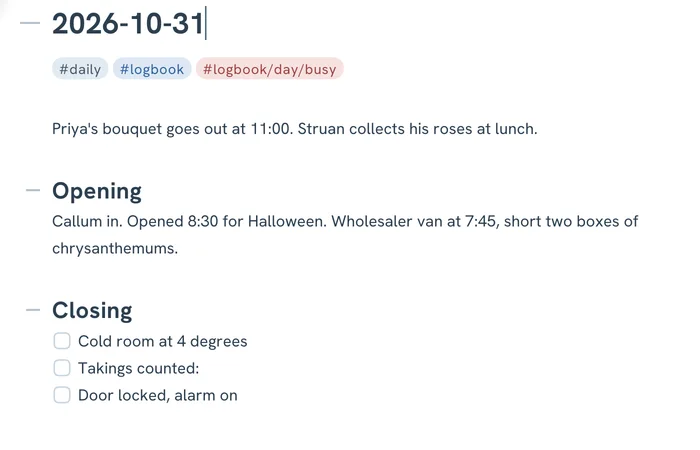
Press Ctrl D when you open up. Mare makes today's note, with the date as its title. Press it again at closing time and you're back on the same page.
Make a note called Daily template and give the day a shape. Flo's starts with a line for the day's news, then a heading for opening and a closing checklist: cold room at 4 degrees, takings counted, alarm on. Put #logbook in it, and every day is filed under the logbook.
Add one tag for how busy the day was: #logbook/day/busy, #logbook/day/steady or #logbook/day/quiet. Right-click each one in the sidebar to give it a colour.
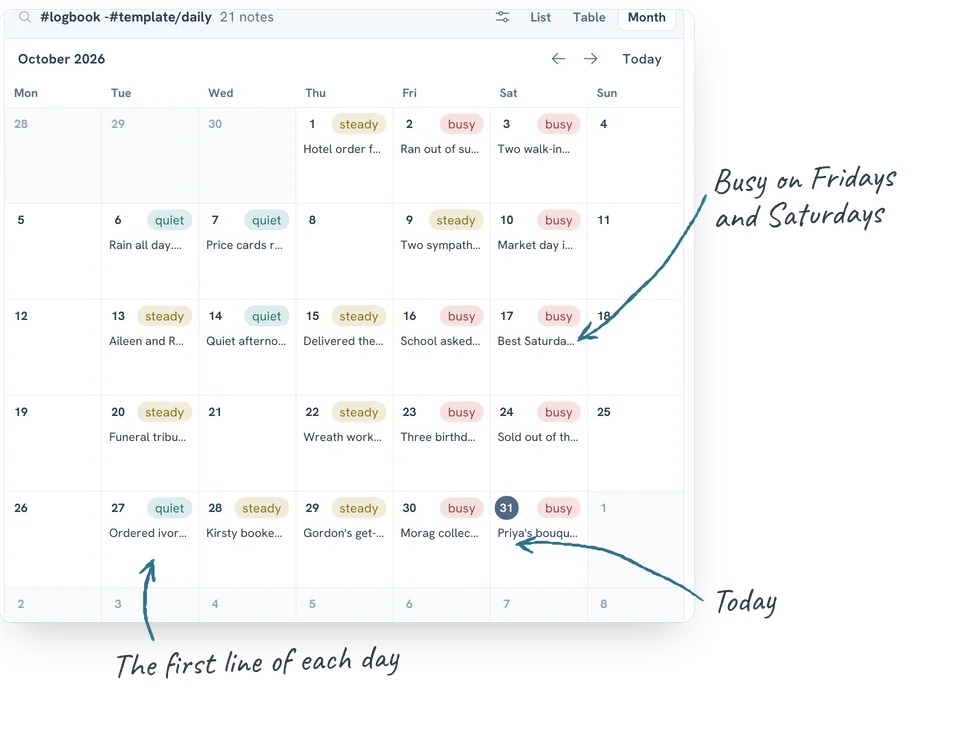
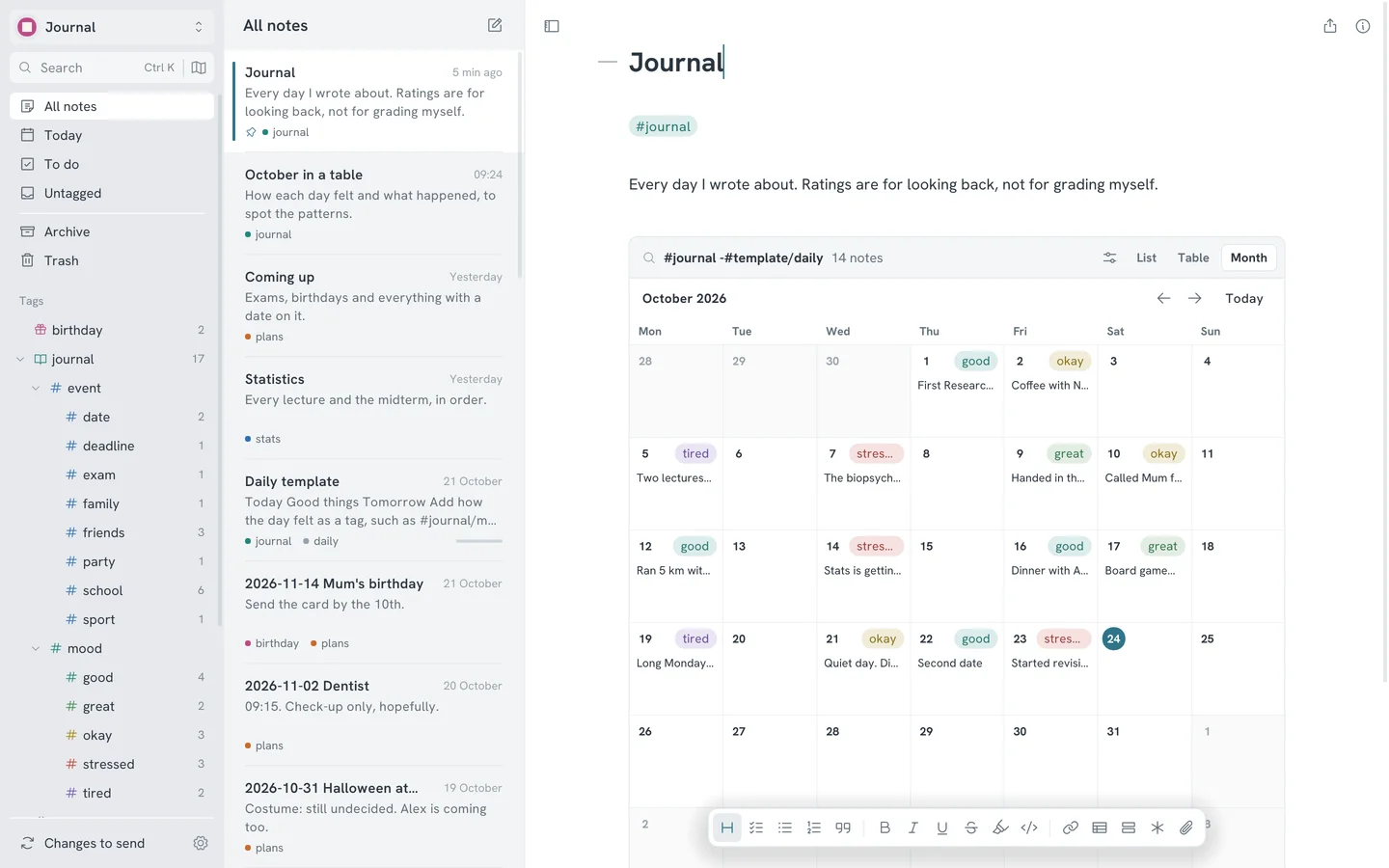
Then make a note called Logbook and click the notes block button in the formatting bar. Pick #logbook and choose Month. Under Leave out, tick #template/daily, so the template doesn't show. Under Pill in each day, choose the day tag.
You never update the calendar yourself. Each day shows its pill and the first line of its note. Mondays and Sundays stay empty because the shop is closed. The busy pills line up on Fridays and Saturdays. That's when Callum's help pays for itself, and when to order extra sunflowers.
Behind the counter and at home
Sync the workspace with Google Drive or a git repository. The laptop behind the counter, your phone and the computer at home then have the same orders. Check tomorrow's deliveries from the sofa, or snap the finished bouquet on your phone and paste it into the order.
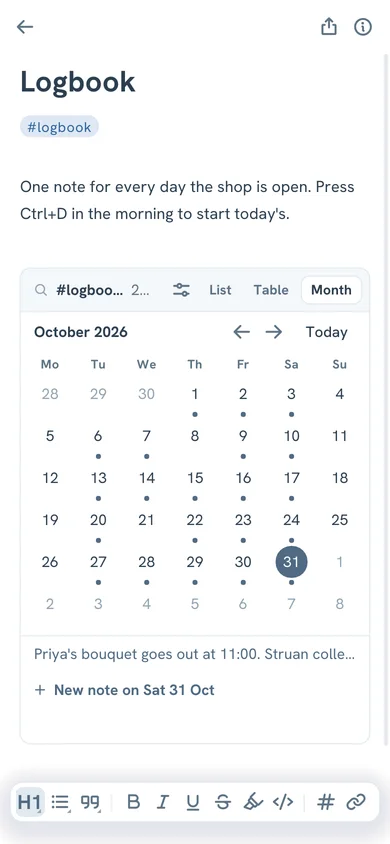
On a phone, the month shows a dot for every day with a note. Tap a day to read it. Tap a cell on the board to change its state, the same way as on the laptop.
Why Mare fits a small shop
Most tools for orders want you to set them up first: fields, forms, views, accounts for every helper. Mare starts as a page you can type on. Structure comes when you want it, a column type or a template at a time. You never have to stop serving a customer to configure something.
- It's fast. Mare is built to stay light, so the old laptop by the till is enough. Search answers as you type.
- It doesn't get in the way. There's nothing to fill in before you can write. An order can be one line until you have time for the rest.
- It's yours. Every order is a plain markdown file on your own disk. The board is a markdown table. If you stop using Mare one day, the shop's history is still readable in any text editor.
Tips
- A regular calls and you can't remember their last order? Press Ctrl K and type their name. You get every order and every logbook day that mentions them.
- Archive an order a month after it's done. Right-click it and choose Archive. It leaves the list, but search still finds it.
- Prefer a board that fills itself? Give each order a state tag, such as
#orders/state/ready, and add a notes block of#ordersas a table. Every order note shows up in it automatically, with State as a column. You change the state in the order instead of on the board. - Keep prices you pay your suppliers in a locked note. Right-click it and choose Lock note. A helper on the shop laptop sees its title, but not your margins.