Mare
MareLogbook / Guide /
Mare for work: meetings, decisions and the week
A note per meeting, actions that all show up in one list, a project note everything links to and a lock on the notes about people. One way to run a working week in Mare.
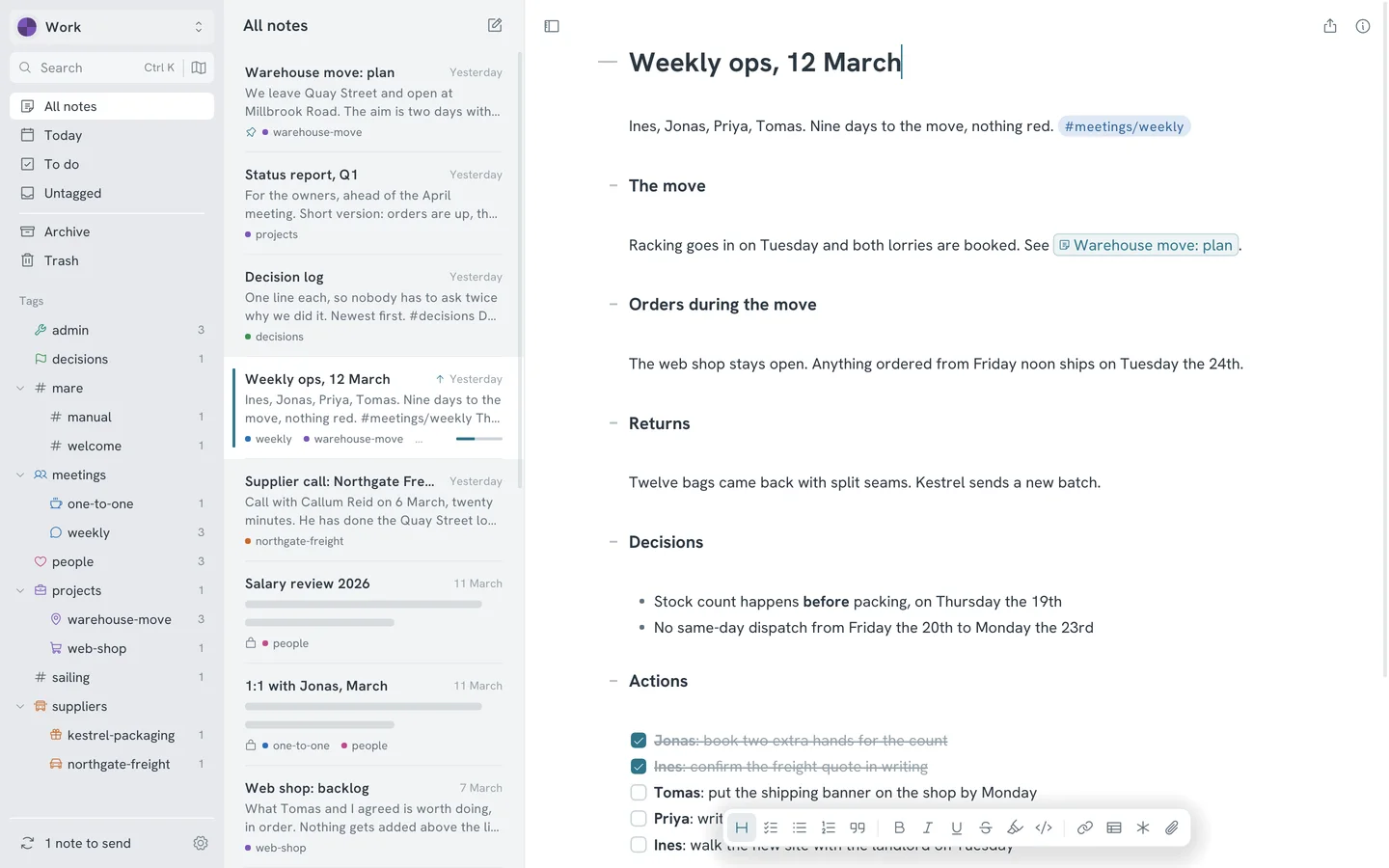
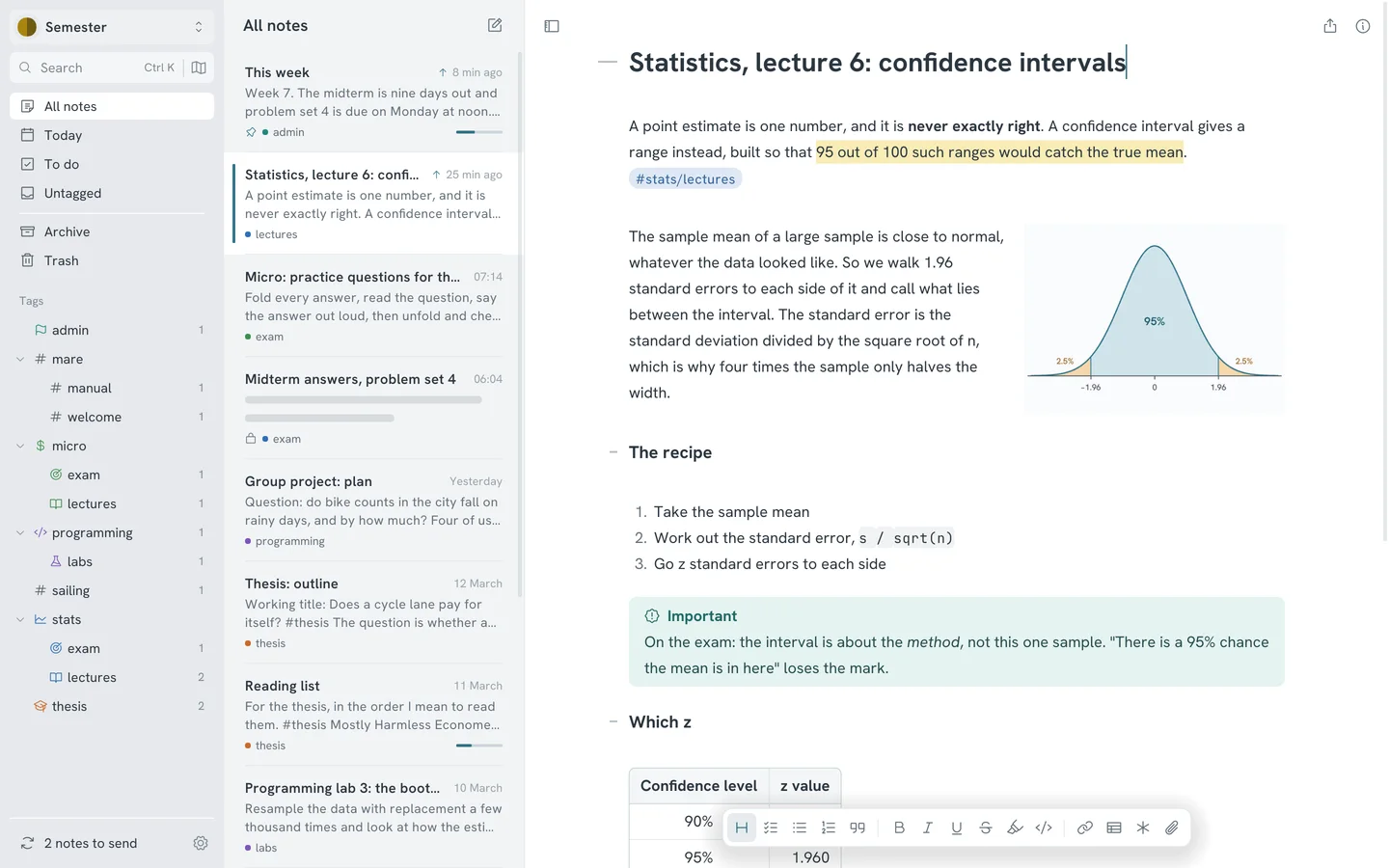
Most of a working week is written down somewhere: in meeting notes nobody reads again, in a chat thread, in a document called Plan v3 final. Here's one way to keep it in Mare, so you can find what was decided, who's doing what and why. The pictures follow a made-up operations lead at a small coffee roaster, nine days before the warehouse moves.
A workspace for work, and only work
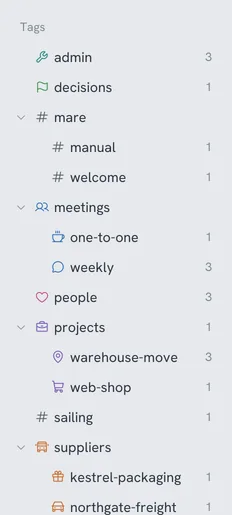
A workspace is a folder of notes with its own tags, its own password and its own place to sync with. Keep one for work and another for home, and switch between them at the edge of the sidebar. Your supplier notes never end up next to your shopping list, and the two workspaces can sync to different places.
You don't have to design folders first. Type #meetings/weekly in a note and Mare files it there. A tag tree that works for most jobs has a tag for each kind of meeting, one per project, one for the people and companies you deal with, and one for decisions. A note can have several tags, so the weekly meeting about the move shows up under both.
One note per meeting, ending in names
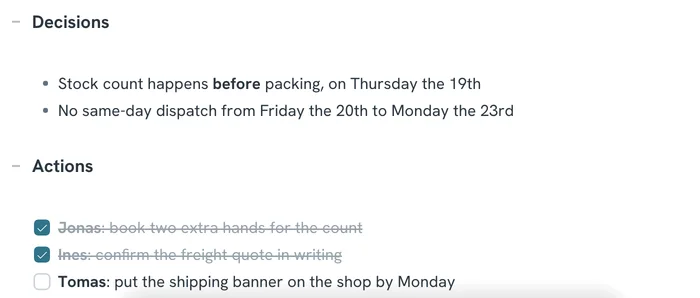
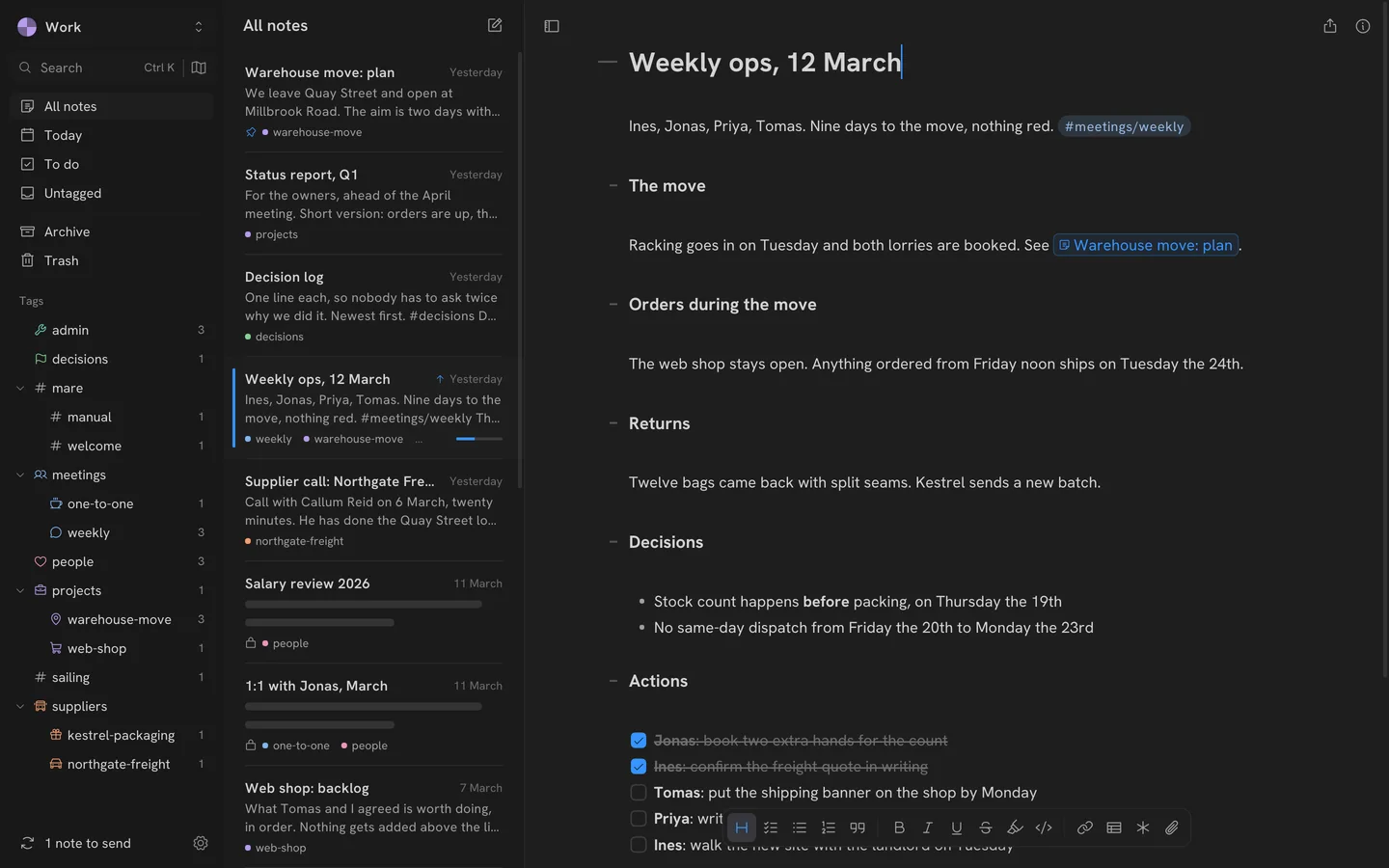
Start a note when the meeting starts. Put the date in the title, the people on the first line, and a heading for each thing that comes up. Mare styles markdown as you type, so the note looks tidy and your hands stay on the keyboard.
The last two headings matter most. Under Decisions, write one line for each thing you settled. Under Actions, add a todo for each thing someone said they'd do, with their name in bold in front. Type [[ to link to the project the meeting was about. Ten minutes after the meeting the note is finished, and it's the only record the meeting needs.
Every open action in one list
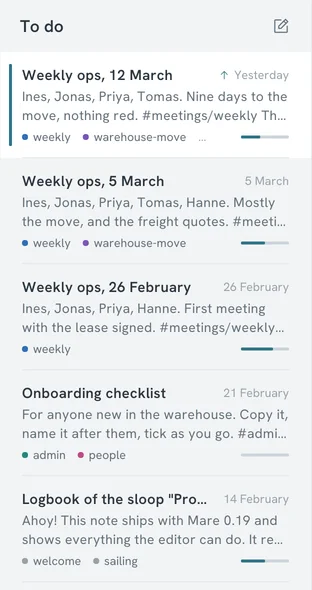
Actions written in last month's meeting are easy to lose. The To do view in the sidebar lists every note that still has an open todo, from any meeting or project. The thin bar on each note shows how many are done. Go through that list before the next weekly and you have your agenda.
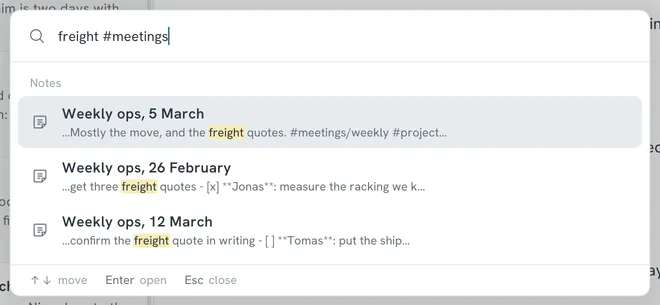
Search can narrow it down. Press Ctrl K and type @todo warehouse to find the notes with open todos that mention the warehouse. Add a tag, as in freight #meetings, to search only meeting notes.
A project note that everything links to
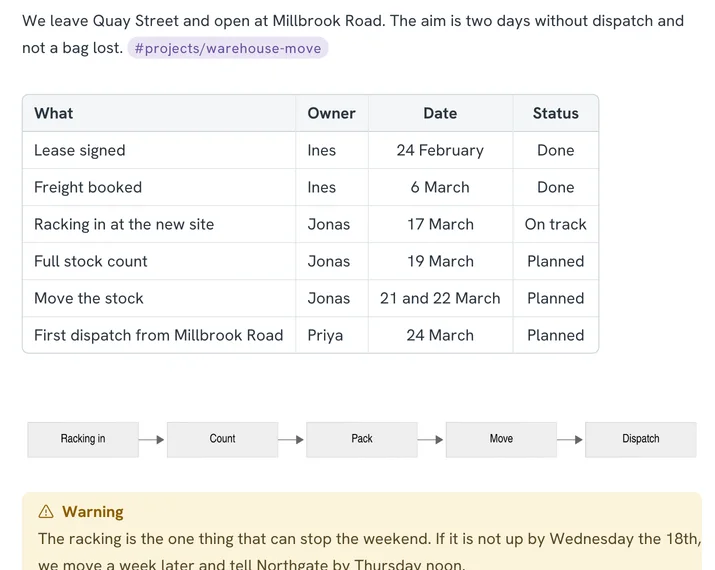
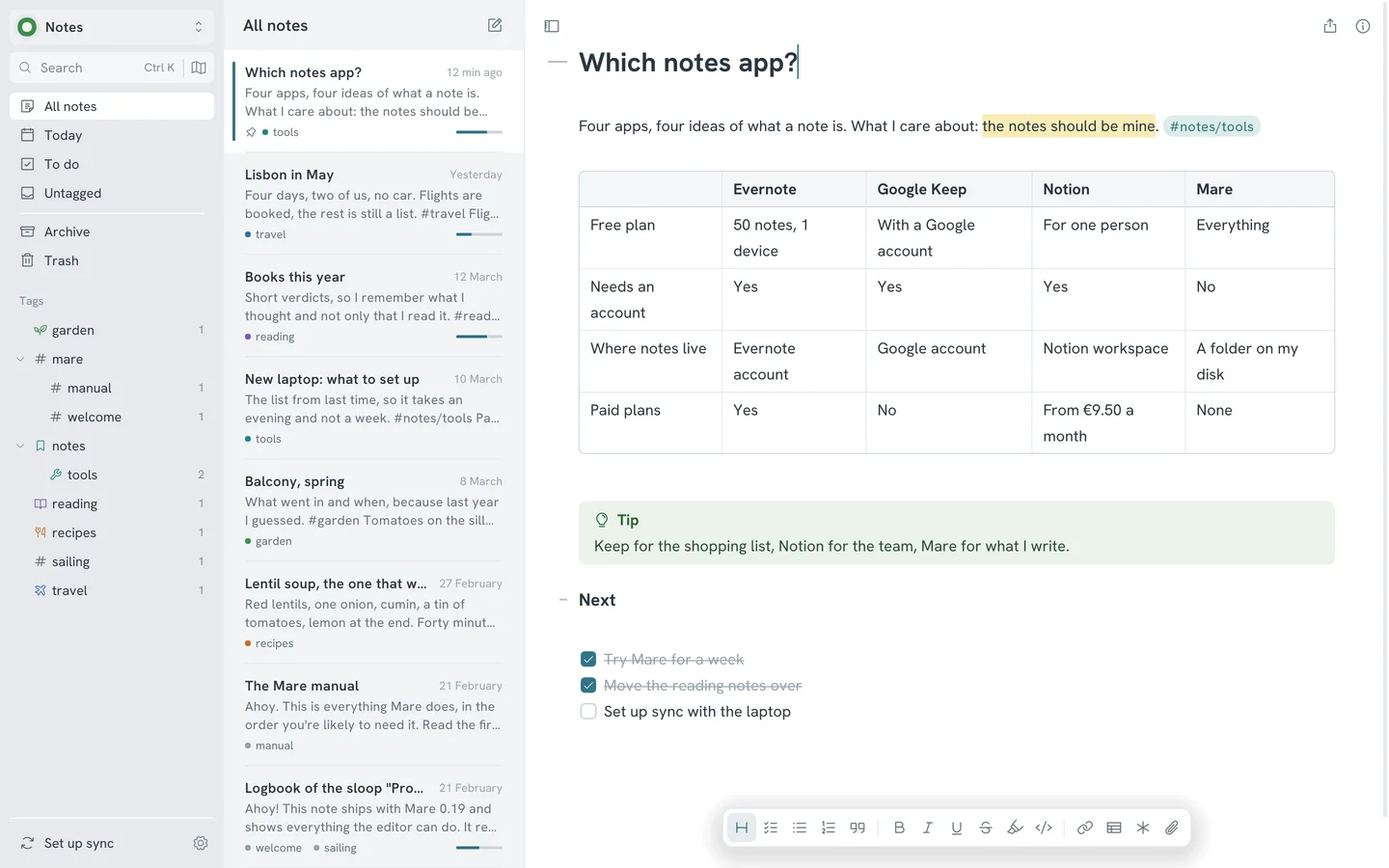
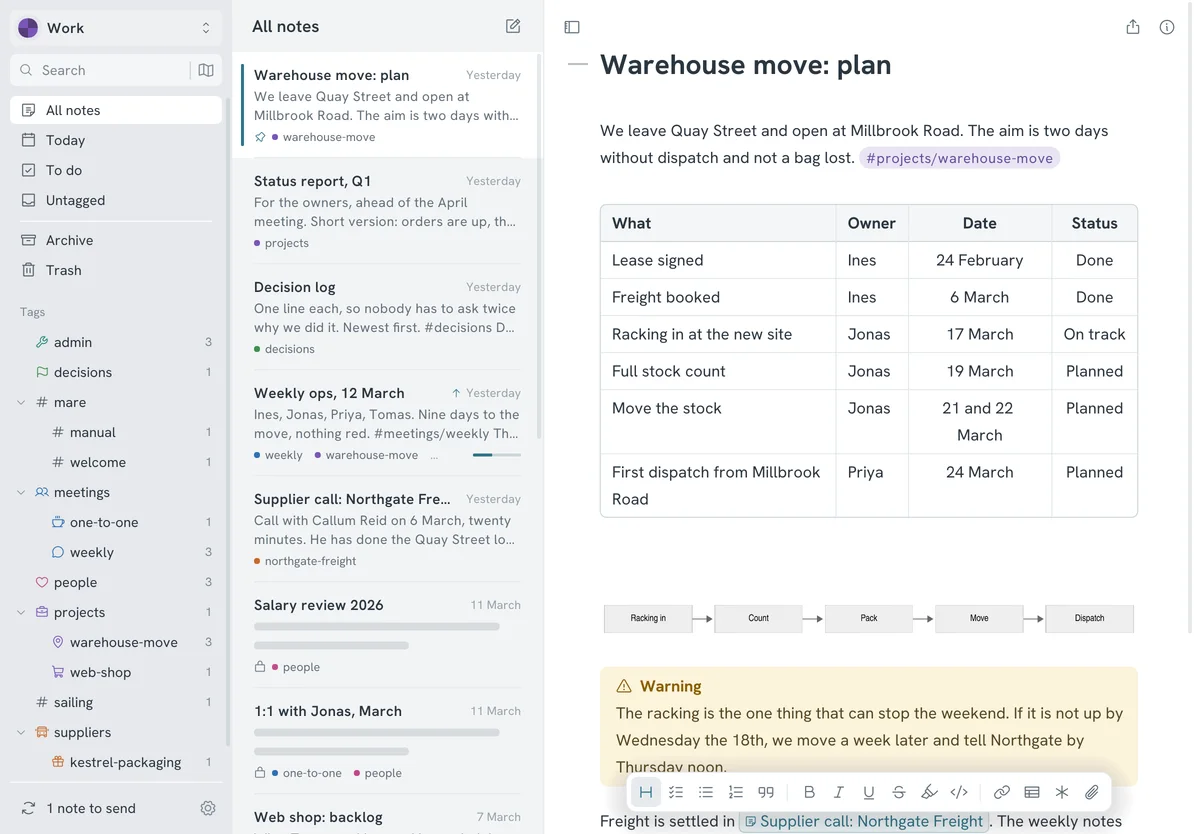
Give each project one note and pin it to the top of the list. Put in it what somebody new would need: a sentence on the goal, a table of milestones with an owner and a date, and the risk that could sink the project. Put that risk in a callout, where nobody can miss it. A mermaid code block turns a few lines of text into a diagram of the steps.
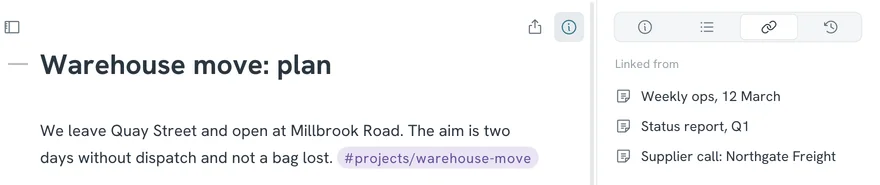
The details stay where you wrote them. The project note links to the supplier call and to the meetings, and each of those links back. The info panel lists every note that links to this one, so you can see which meetings discussed the project without keeping a list.
Follow a link and the note you came from stays beside the new one, as a narrow strip with its title down the side. Click it to go back. You can read a project that way, from the plan into a meeting and back, without searching.
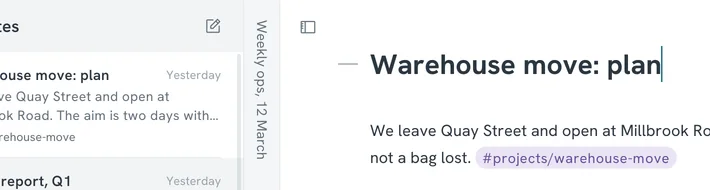
A decision log
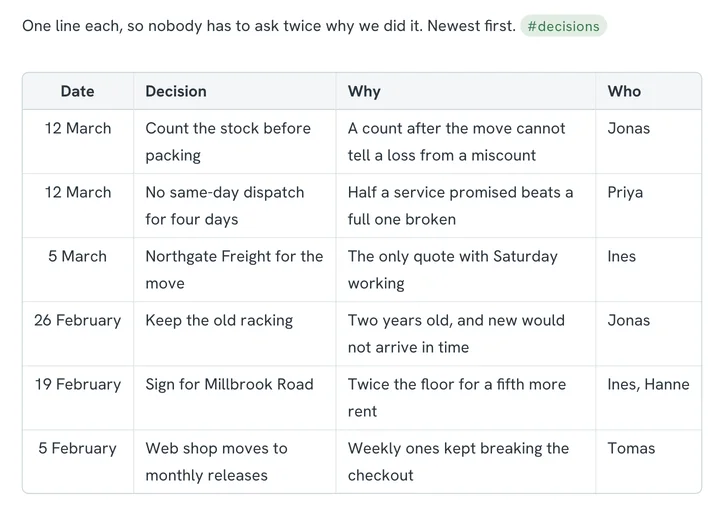
Six months from now someone will ask why you chose that freight company. The answer is in a meeting note from March, if anyone can find it. A decision log is a single note with a table of four columns: the date, what was decided, why, and who decided. Add a row whenever a meeting note gets a line under Decisions.
It's the cheapest document a team can keep, and people do read it. Tables in Mare wrap long text inside their cells, so the why can be a full sentence.
Lock the notes about people
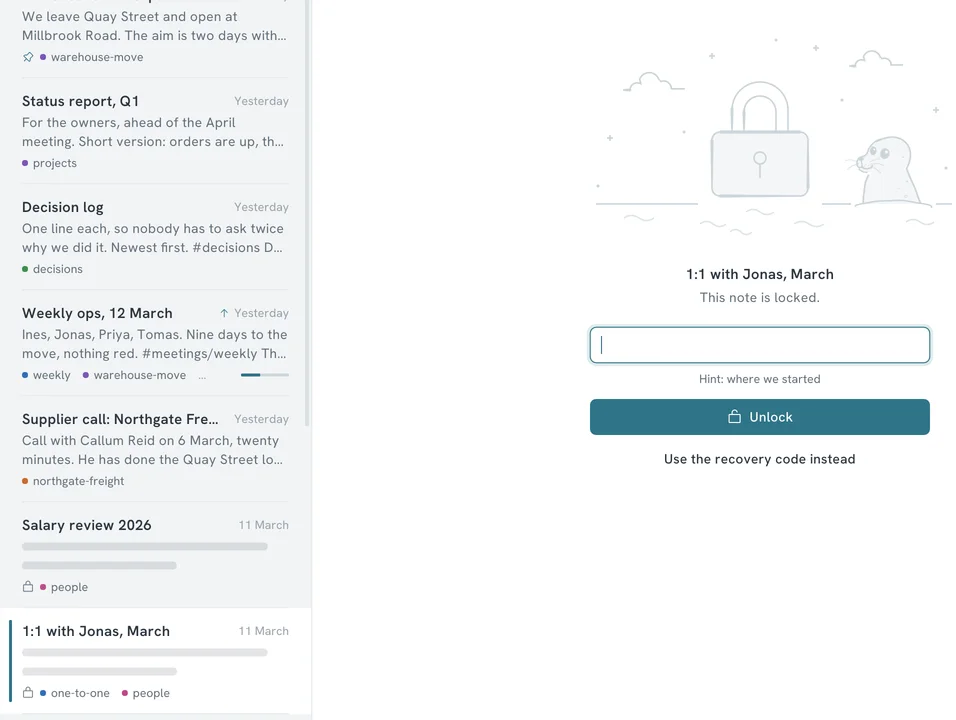
Notes from a one-to-one, a salary review or a difficult conversation shouldn't be readable by whoever borrows your laptop for a presentation, or by anyone who can see the place your notes sync to. Right-click the note and lock it. Mare then stores its text and attachments encrypted, on your computer and everywhere the workspace syncs to.
One password unlocks all locked notes in the workspace. Mare locks them again after 10 idle minutes or when you leave the workspace. You can also lock them right away with the lock at the top right. Titles and tags stay readable so you can find the notes, so keep anything sensitive out of the title. Mare shows a recovery code once when you set the password. Write it down somewhere else, because nobody can reset the password for you.
See how the plan changed
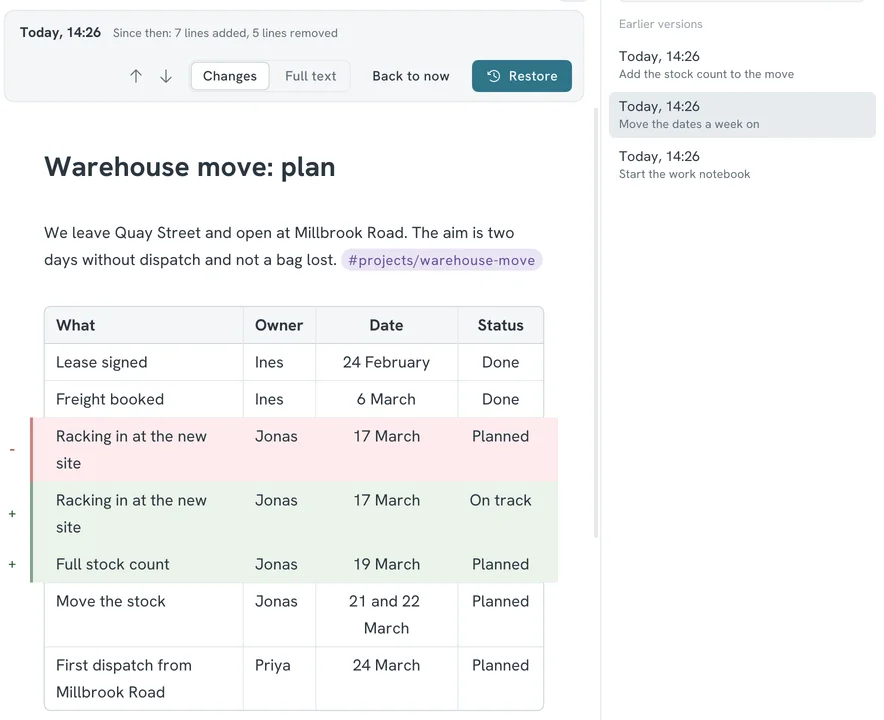
Plans slip, and afterwards nobody agrees on when. Each time you sync, Mare keeps the previous version of the note. The clock tab in the info panel lists the versions with the message you wrote when syncing. It shows what was added in green and what was removed in red, and restores an old version with one button.
The timeline under the note has a mark for every version. Drag along it to watch the dates move.
Hand it over as a PDF
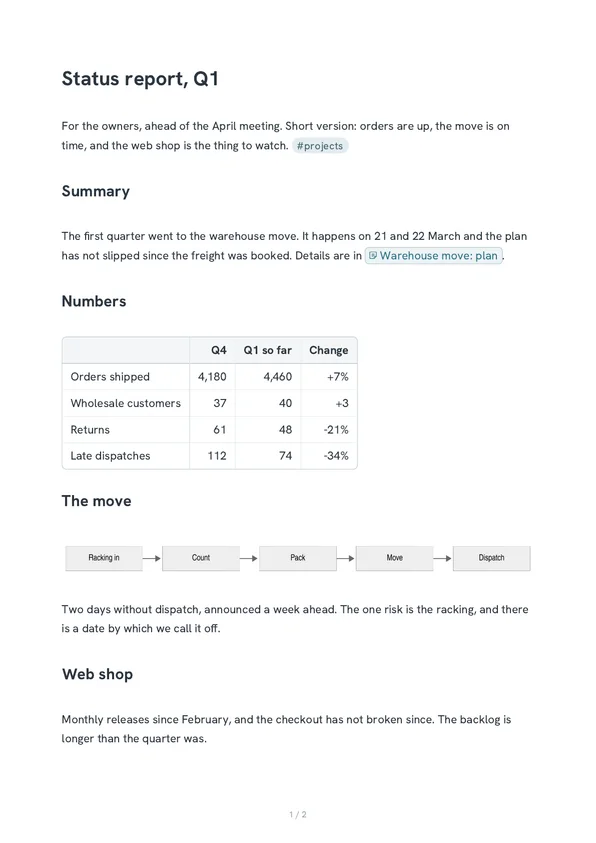
Not everyone you report to uses Mare, and they shouldn't have to. Write the status report as a note, with headings, a table and a diagram, and export it with the button at the top right. One switch adds a front page with a title, an author and a date. Another adds a table of contents with page numbers.
You get an A4 PDF with text you can select and search, and a clickable table of contents. The note stays the source, so you can start next quarter's report from this one.
Let an assistant read the minutes
If you use an AI assistant on your own computer, such as Claude or Codex, you can let it work with your notes. Turn it on under Settings > AI agents and add Mare to the assistant with one button. Then ask it what was decided about freight. Or ask it to draft this week's status from the last three weekly notes and save it as a new note with the right tag.
It's off until you turn it on, and the limits are clear. An assistant can search, read, create, add to and tag notes. It can't delete one. It works in the open workspace unless you allow others. A second switch makes it read-only. Locked notes are kept from it altogether. Mare sends nothing anywhere for this. The assistant asks on your own computer and Mare answers there, on an address other computers can't reach.
Sync where your work already lives
Mare has no server and no account. A workspace syncs to a place you pick: a git repository, an SFTP server, an S3 bucket, a shared folder or Google Drive. If your company already runs one of those, your notes can stay inside it. Sign-in details stay in your computer's keychain.
To share a project with a colleague, give them access to the place it syncs with. Edits to different notes, or to different parts of one note, merge automatically. If two of you changed the same lines, Mare shows both versions side by side and you pick.
Make it feel like your other tools
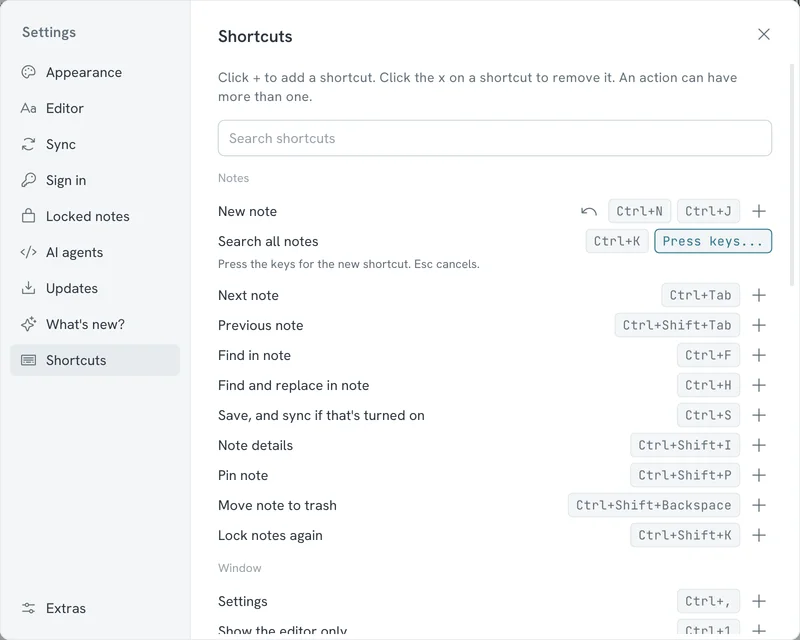
Mare comes with 22 themes, and a few will feel like home if you spend your day in VS Code or IntelliJ. Nearly everything has a shortcut: Ctrl N for a new note, Ctrl T for a todo, Ctrl Enter to tick it. On a Mac, use Cmd instead of Ctrl. You can change any of them in Settings, and give an action more than one. The manual has the full list.